
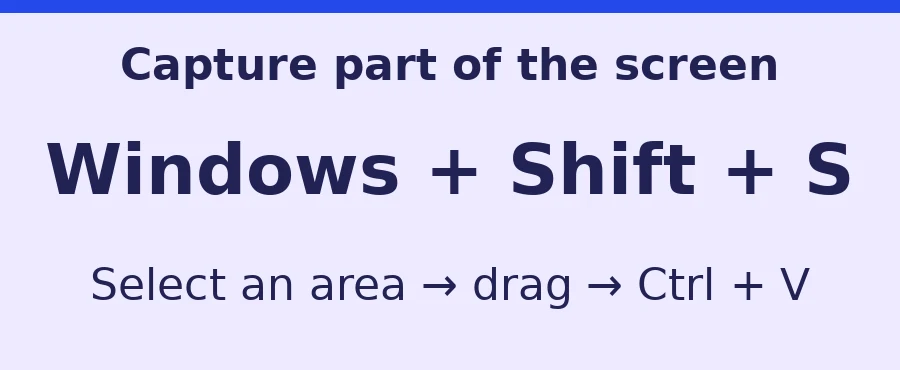
You do not need a Print Screen key to capture your Windows screen. Press Windows + Shift + S to open Snipping Tool, choose a rectangular, window, or full-screen capture, and save the result.

Option 1: Windows + Shift + S
Hold the Windows key and Shift, then press S. The screen dims and the snipping toolbar appears. Choose the rectangular selection for a portion of the screen, Window for one app, or Full screen. Drag or click as prompted, then open the capture notification to edit it. On current Windows 11 versions, Snipping Tool may also save automatically to Pictures > Screenshots.
Option 2: launch Snipping Tool from Start
Open Start, type Snipping Tool, and launch the app. Choose the snip mode and select New. This is especially useful on laptops where a function key combination is unclear.

Option 3: alternate hardware shortcut
Microsoft documents Fn + Windows logo key + Space Bar as another screenshot shortcut on some devices without a PrtSc key. Whether this works depends on your keyboard and its manufacturer.
Save and find your capture
In the Snipping Tool editor, use Save as or Ctrl + S and choose a folder. If you only have a clipboard image, open Paint, press Ctrl + V, and save. Review any visible private information before sharing.
Frequently asked questions
Will the shortcut work on Windows 10? Yes, Windows + Shift + S is supported on Windows 10 and 11.
Why did nothing appear in my Screenshots folder? The image may be in the clipboard if automatic saving is off or the capture was made with a different shortcut.
Leave a Reply