
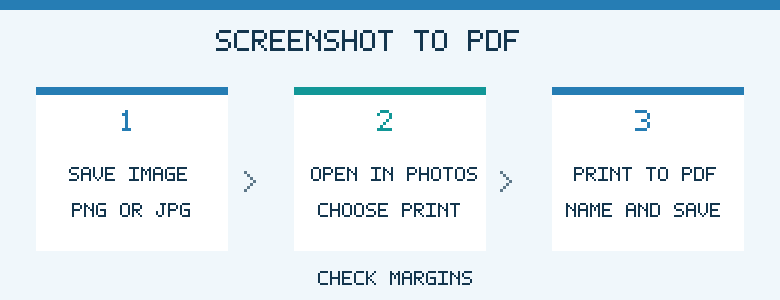
Windows can turn a screenshot into a PDF without extra software. Open the saved image in Photos or Paint and choose Print, then select Microsoft Print to PDF as the printer.

Capture and save the image
Press Windows + Shift + S, select the area and save it as a PNG or JPG from Snipping Tool. If you captured only to the clipboard, paste it into Paint and save it first.

Print to PDF
Open the picture, choose Print, and select Microsoft Print to PDF as the destination. Check page orientation, margins and whether the picture is being cropped. Click Print and choose a filename and folder when prompted.
Keep small text readable
A screenshot of a wide spreadsheet can be hard to read on a letter-size page. Choose landscape orientation or create multiple zoomed captures if necessary. A screenshot PDF is a picture; most text in it is not inherently editable or searchable without text recognition.
Choose the better format
For a website or document with selectable text, Print or Export to PDF from the original application may preserve searchable text more effectively. Use screenshots when you specifically need an exact visual of what was on-screen.
Frequently asked questions
Does a screenshot PDF improve image resolution? No. Converting the image to PDF does not create detail that was not captured.
Can I include several screenshots in one PDF? Yes. Place them into a document, arrange them on pages, then export or print that document to PDF.
Leave a Reply